Quick answer
- Log reps in the app first so widgets have data.
- Pick This week or Trend for daily motivation.
- Use the challenge widget when a roadmap is active.
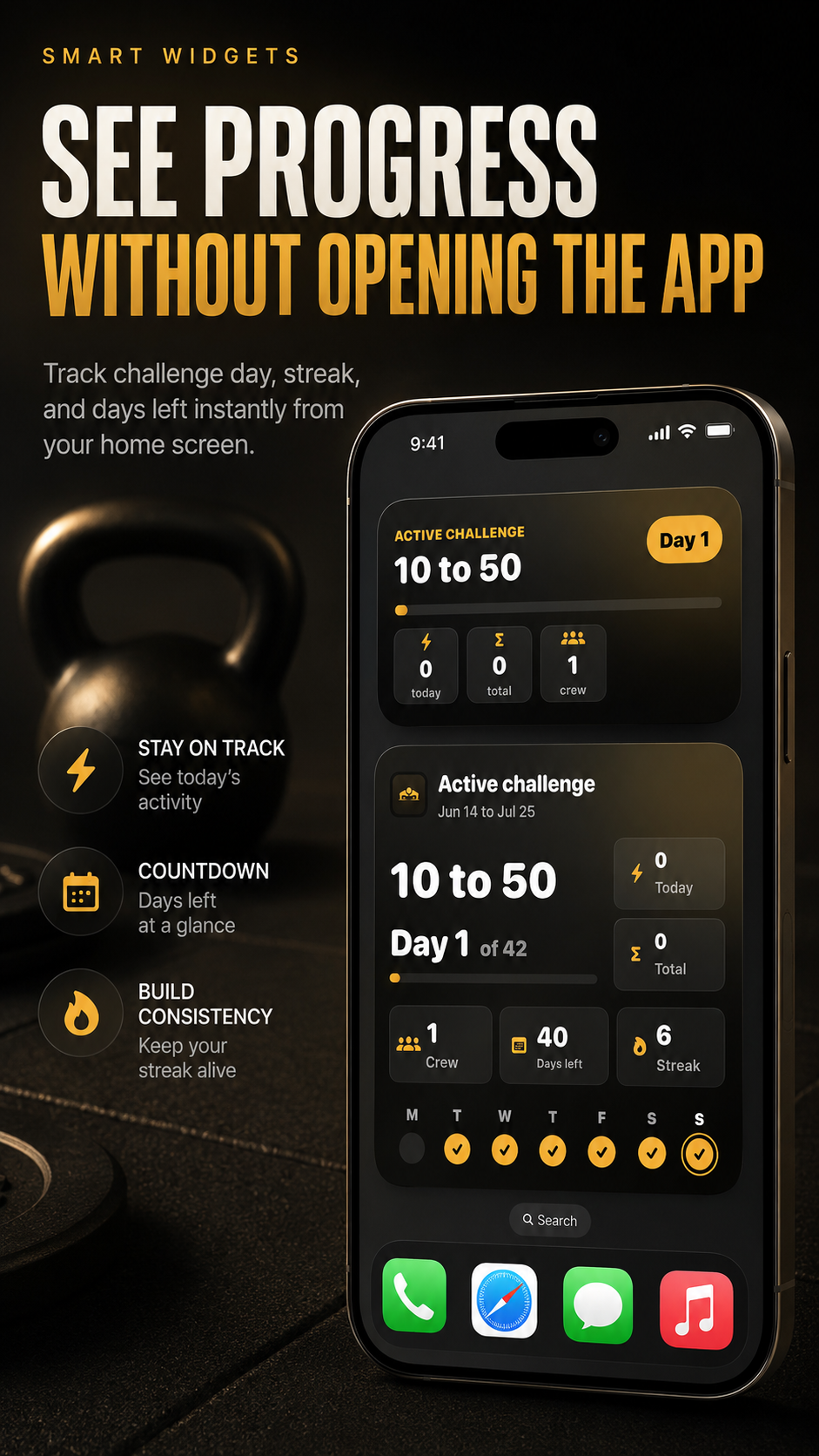
Add a PushMax widget so weekly reps, trends, or active challenges stay visible at a glance. This guide explains the practical workflow and the small details that make training feel measurable instead of vague.
Add a PushMax widget so weekly reps, trends, or active challenges stay visible at a glance.
This topic matters when you want push-up progress to feel verified, social, and easy to repeat tomorrow.
These examples map the support topic to everyday push-up training, accountability, and progress tracking situations.
Example 1
Use the This week widget as a reminder before work.
Example 2
Add the trend widget if you care more about consistency than one big day.
Example 3
Keep the challenge widget visible during a 100-rep roadmap.
Common mistakes
Related guides
No. Camera frames are used for live rep detection and are not saved as workout images.
Yes. PushMax is built for anywhere push-ups with camera counting, streaks, and friend accountability.
Device model, iOS version, app version, and a short description of the issue are usually enough.