Quick answer
- Open Settings and enable Job Site Mode.
- Use the higher-contrast calculator while working in sunlight.
- Keep haptics on and confirm the result before leaving the measurement position.
Make the calculator easier to read outdoors, keep it awake during measurement, and use tactile feedback without changing the familiar keypad layout.
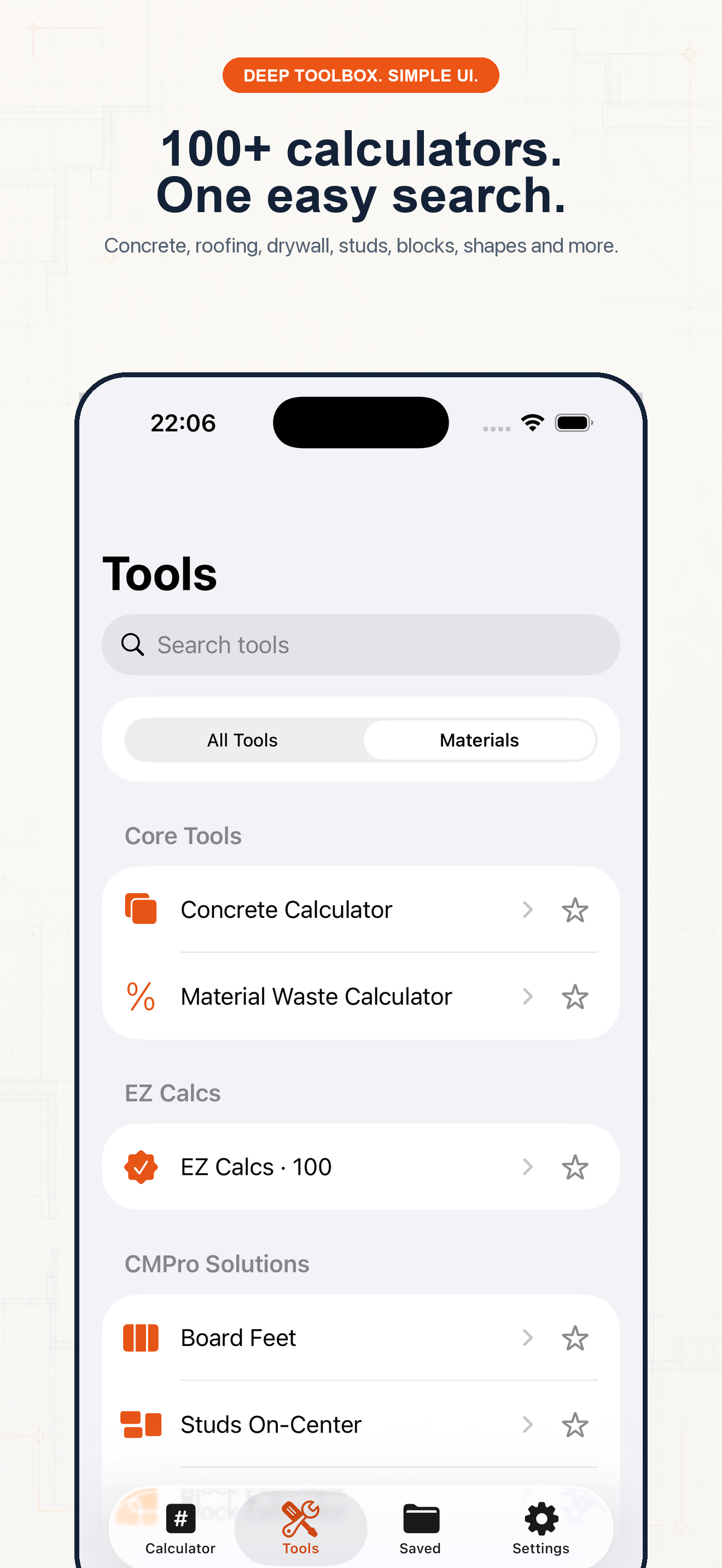
This image is from the current Construction Pro project and shows the product interface behind this guide.
Follow the sequence and keep units visible at every handoff.
Step 1
Open Settings and switch on Job Site Mode. The app uses a high-contrast palette designed for outdoor readability.
Step 2
Job Site Mode keeps the display awake while the app is active, reducing unlock-and-reenter interruptions during a measurement.
Step 3
The five-column construction keypad remains stable, so repeated use builds muscle memory.
Step 4
Disable the mode when indoor appearance or battery conservation is the priority.
Example 1
Use the dark, high-contrast result display while checking diagonal measurements.
Example 2
Use haptic confirmation, then visually check the expression line for missed taps.
Example 3
Keep the screen visible while moving between two tape endpoints.
Common mistakes
Related guides
No. Confirm measurements, units, assumptions, and applicable code before cutting material, ordering supplies, or issuing a quote.
No. Its calculators use explicit formulas and the inputs you provide; missing field conditions still require professional judgment.
Yes. Save verified calculations in a project and add a descriptive note so the crew can see what the result means.
Use feet-inch math, rafter tools, material estimates, and saved calculations from one construction calculator.